Microsoft Word: Edit Documents
Microsoft CorporationProductivity
4.8120.03K Reviews
- Version
- Varies With Device
- Installs
- 1.00B
- Age Rating
- Everyone
Screenshots

Our Review of Microsoft Word: Edit Documents
 Analysis by Appyee
I use Microsoft Word when a document needs to be more than a quick note: a class assignment, a work handout, or a draft I’ll need to revisit on another device. On a phone, it can feel like carrying a small writing desk rather than a full office, though the smaller screen does change how comfortably I can edit. Microsoft Corporation’s free productivity app has a 4.8 average from around 16 million ratings and over 1 billion installs. It is rated for Everyone, with optional in-app purchases, so the main question is less whether it can open a document and more whether its editing style suits the way you work.
Getting Started with Microsoft Word
First things first, getting started with Microsoft Word is a breeze. Once you download it from the Play Store, a quick sign-in with your Microsoft account is all it takes to dive in. The app is designed to be intuitive, so even if you're a newbie, you’ll find your way around without a hitch.
A practical workflow for everyday documents
My simplest routine is to create or open a document, get the words down first, and tidy the layout after the structure is clear. Word supports both starting from a blank page and choosing a template, which is useful when I want a familiar starting point for a résumé, letter, or meeting agenda. Templates save setup time, but I still check spacing and headings before sharing: a polished starting layout is not a substitute for reviewing the actual document.
For a short message or a few rough ideas, a notes app is usually quicker. Word earns its place when I expect to edit, format, print, or share the writing as a document. A realistic example is revising a class handout on the way home: I can make wording changes on my phone, then review the page layout later on a larger screen. That division works better than trying to perfect every detail with a thumb-sized keyboard.
The app is free to download, but in-app purchases are listed from $0.99 to $199.99 per item. I’d start with the tasks I actually need and check the current purchase details in the app before paying for anything. Word is a strong fit for regular document work, but a casual user who only wants a plain checklist may not need its broader toolkit.
User Interface and Experience
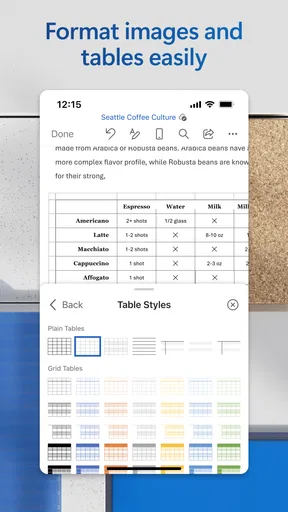
The interface is clean and user-friendly. It’s got that familiar ribbon at the top, just like the desktop version, which makes navigation a piece of cake. I found it super easy to switch between editing tools. The app is snappy and doesn’t lag, which is a huge relief, especially when you’re working on the go.
On a phone, the ribbon is useful but can feel crowded when I’m switching between reading and editing. I get better results by making one kind of change at a time: first fix the text, then adjust formatting, then inspect the finished page. This avoids hunting through controls while also trying to keep a sentence in mind. A tablet gives more room for the same workflow, while a laptop remains more comfortable for long sessions involving detailed layout.
Before I edit a shared or important file, I check that I have the intended document open and that I can identify its latest changes. This small pause matters when several drafts have similar names. For long documents, I also use clear headings as I write rather than trying to impose structure at the very end; it makes later navigation and editing less tiring.
Features That Stand Out
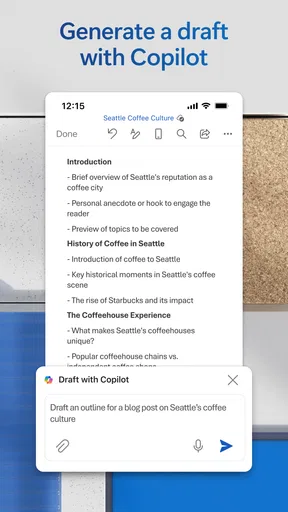
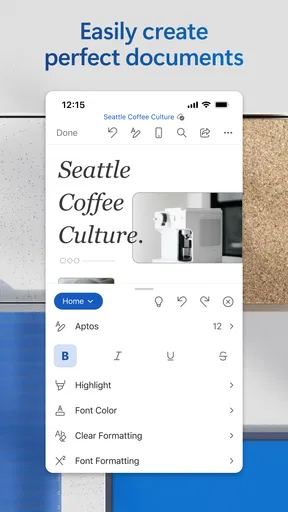
What really caught my attention are the features packed into this app. You can create documents from scratch or choose from a variety of templates. The editing tools are comprehensive—think bold, italics, underlines, and more. Plus, the spell check is a lifesaver for catching those pesky typos.
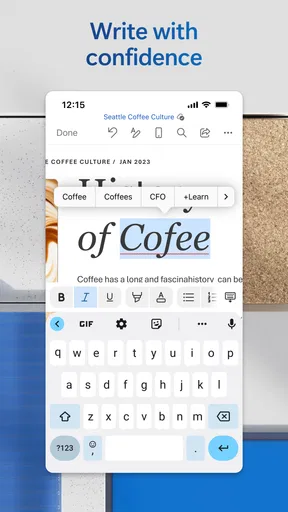
Grammar and spelling checks are helpful as a final pass, not a replacement for judgment. They can flag a typo I overlooked, but I still read the sentence aloud or slowly when the wording matters. Names, technical terms, and intentional phrasing deserve a human check, especially in a document going to a client or instructor. I also avoid applying formatting by tapping through many words individually; selecting a heading or a full paragraph first is a more controlled way to keep styles consistent.
For a document that will be reused, I find it worthwhile to settle on a small set of heading and body-text styles early. That habit makes later edits less fiddly and helps readers scan the page. It is also a useful safeguard when copying material into a draft: pasted text can arrive with different formatting, so I inspect the result instead of assuming it matches the surrounding paragraphs.
One standout feature is the real-time collaboration. You can share documents with colleagues and see changes as they happen. It’s perfect for teamwork, and honestly, it makes group projects a lot less painful.
Collaboration is most useful when everyone knows which file is the working copy and who is responsible for which part. For a group assignment, I’d agree on a shared outline first, then ask contributors to work on distinct sections. That reduces the chance of contradictory edits and makes a final read-through easier. If the document contains sensitive or unfinished material, I would also think carefully before sharing it and choose collaborators deliberately.
Settings and habits worth checking
I get more predictable results when I check the document’s layout before spending time on fine formatting. Page size, margins, and orientation can affect where a paragraph or image lands, so I review the overall page after making substantial changes. This is especially helpful for a document meant to be printed: the phone view can make text look tidy while hiding awkward page breaks.
Another useful habit is to name files so I can recognize their purpose at a glance, rather than relying on a vague title such as “draft.” When a document moves between devices, a clear filename makes it easier to choose the right version. I also pause before deleting or replacing text in a shared file, since collaborators may be working from the same document and a quick check can prevent avoidable confusion.
Word’s Microsoft account connection and OneDrive integration can support a move between devices, but I still treat saving and syncing as something to verify rather than assume. Before closing a document after important edits, I give it a moment and confirm that the latest work is present when I reopen it. If I’m heading somewhere with unreliable connectivity, I prepare the file beforehand instead of leaving essential editing until I’m offline.
Integration and Cloud Sync
Another thing I love is the seamless integration with OneDrive. All your documents are automatically saved in the cloud, so you can pick up right where you left off on any device. It’s super convenient and gives you peace of mind knowing your work is backed up.
That convenience is a real advantage if you already use Microsoft’s tools, but it may feel like extra account setup if you prefer keeping documents local or use another cloud service as your main home. I’d choose a storage routine before building a large collection of files, then stick to it. Cloud access is helpful for continuity; it does not remove the need to keep filenames understandable or to check that the version I need is available.
Compared with a basic notes app, Word is better when presentation and document structure matter, but it takes more attention for quick capture. Compared with editing on a desktop, the mobile app makes small corrections and reviews convenient, yet long formatting sessions are less comfortable on a compact screen. If I’m collaborating with people who already exchange Word documents, staying in Word can reduce conversion hassles. If a project is mainly free-form notes or a lightweight checklist, a simpler tool is often the less distracting choice.
Where the mobile version can feel limiting
The main trade-off I notice is not a missing headline feature but the cost of precision on a small display. Selecting a narrow stretch of text, checking page breaks, and adjusting a complex layout all demand more care than they do with a keyboard and larger screen. I use the phone for drafting, corrections, and review, then save detailed layout work for a computer when the document’s appearance is important.
That also shapes who I would recommend it to. Students, office workers, and anyone who regularly receives or edits Word documents can get real value from having the format close at hand. Someone who writes long reports every day may still prefer a desktop for most of the work. And if you do not want an account-based workflow, or you only need a quick place to jot a shopping list, Word may feel heavier than necessary.
Version details and available controls can change over time, so I avoid building a workflow around a button being in one exact spot. The dependable approach is to learn the few actions I use most, then check the current interface when I need something less familiar. That keeps the app approachable without pretending the phone screen behaves exactly like a desktop.
Final Thoughts
All in all, Microsoft Word: Edit Documents is a powerhouse app that lives up to its reputation. Whether you're a student, a professional, or just someone who loves jotting down thoughts, this app is a game-changer. It’s reliable, feature-rich, and incredibly easy to use.
I’d describe it more modestly: it is a capable companion for document work, especially when Microsoft files and cross-device access are already part of your routine. The strongest results come from pairing its tools with a few habits—use headings, check the page before sharing, and reserve detailed layout work for a screen that gives you room. Those choices make the mobile experience feel deliberate instead of cramped.
So, if you haven’t yet, give it a shot. You might just find that it’s exactly what you need to boost your productivity. Happy writing!
Privacy and Permissions
See what permissions an app requests and how it handles your data.
- Identity
- find accounts on the device, add or remove accounts
- Contacts
- find accounts on the device, read your contacts
- Photos/Media/Files
- read the contents of your USB storage, modify or delete the contents of your USB storage
- Storage
- read the contents of your USB storage, modify or delete the contents of your USB storage
- Camera
- take pictures and videos
- Microphone
- record audio
- Wi-Fi connection information
- view Wi-Fi connections
- Other
- view network connections, create accounts and set passwords, pair with Bluetooth devices, measure app storage space, full network access, change your audio settings, control Near Field Communication, run at startup, draw over other apps, use accounts on the device, control vibration, prevent device from sleeping, install shortcuts, Google Play license check
How Microsoft Word: Edit Documents Compares
Full ComparisonChoose Google Docs for straightforward team editing, Word for detailed document formatting, or Microsoft 365 Copilot for AI-assisted work across Microsoft apps.
| App | Developer | Rating | Price |
|---|---|---|---|
 Google Docs | Google LLC | 4.7 | Free |
 Microsoft Word: Edit DocumentsThis App | Microsoft Corporation | 4.8 | Free |
 Microsoft 365 Copilot | Microsoft Corporation | 4.4 | Free |
Verdict
Strengths of Microsoft Word: Edit Documents
- User-friendly interface for quick navigation.
- Seamless integration with OneDrive for cloud access.
- Rich editing tools for detailed document formatting.
- Collaboration features support real-time editing.
- Available across multiple platforms for flexibility.
Limitations of Microsoft Word: Edit Documents
- Requires a subscription for full feature access.
- Occasional syncing issues with large files.
- Limited offline functionality without premium.
- Mobile version lacks some desktop features.
- Can be heavy on device resources.
Other Releases by Microsoft Corporation
View All
Microsoft OneDrive
Productivity4.6

Microsoft OneNote: Save Notes
Productivity4.6

Link to Windows
Productivity4.0

Microsoft PowerPoint
Productivity4.8
Similar Picks in This Category
View All
Google Calendar
Google LLC4.6

Google Drive
Google LLC4.3

Google Assistant
Google LLC3.9
Microsoft OneDrive
Microsoft Corporation4.6

Samsung Calendar
Samsung Electronics Co., Ltd.4.1
Microsoft OneNote: Save Notes
Microsoft Corporation4.6
You May Also Like
View All


Frequently Asked Questions
What features does Microsoft Word: Edit Documents offer for mobile users?
Microsoft Word: Edit Documents on mobile offers a robust set of features, including real-time collaboration, document formatting, and cloud integration with OneDrive. Users can create, edit, and view documents with ease, all while utilizing advanced tools like comment tracking, templates, and spell check. Its seamless integration with other Microsoft Office apps enhances productivity on the go.
Is Microsoft Word: Edit Documents free to use on mobile devices?
Yes, Microsoft Word: Edit Documents is free to download and use on both Android and iOS devices. However, some advanced features require a Microsoft 365 subscription. The free version offers basic editing and viewing capabilities, but a subscription unlocks full functionality, including premium templates and advanced formatting tools.
How does Microsoft Word ensure the security of my documents on mobile?
Microsoft Word: Edit Documents prioritizes security by offering features like password protection, which allows users to secure their documents. Additionally, cloud storage through OneDrive provides encrypted data transfer and storage. Regular updates from Microsoft also ensure compliance with the latest security protocols, keeping user data safe.
Can I collaborate with others using Microsoft Word on my mobile device?
Yes, Microsoft Word supports real-time collaboration on mobile devices. Users can share documents via OneDrive and work together simultaneously. The app allows for easy tracking of changes, adding comments, and syncing updates instantly, making it a powerful tool for team projects and collaborative work.
Does Microsoft Word: Edit Documents work offline on mobile?
Microsoft Word: Edit Documents can be used offline on mobile devices, allowing users to create and edit documents without an internet connection. Changes made offline are automatically synced once the device is back online, ensuring that your work is always up-to-date and accessible from any location.
